
Spotloader allows for the creation of detailed traffic instructions to accompany the materials uploaded to the service. using the traffic instruction module will allow you to effectively convey the air instructions for your spots.
In addition, Spotloader is fully integrated with Wide Orbit EMI. For those stations that support Wide Orbit EMI the traffic instructions can be automatically imported to create house numbers and assign traffic to the matching Wide Orbit order number with little to no intervention needed by the station’s traffic department.
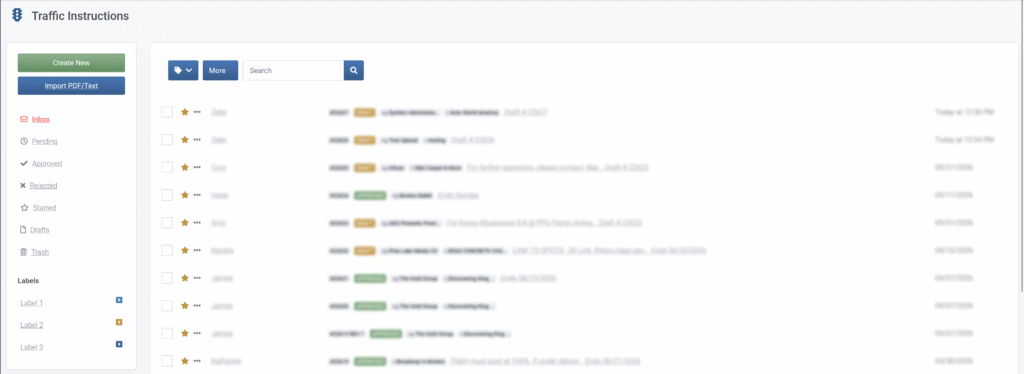
Creating a New Traffic Instruction Set

To create a new traffic instruction set first click the “Create New” button within the traffic instructions page and enter the requested information as listed below.
For example: New Cars vs Used Cars for car dealerships.
For example: You may need to specify a specific Media ID that should run in all NFL programming regardless of the standard traffic instructions.
For example: If all stations you deliver to will use the same :15 instructions but New York stations need to use a separate set of :30 instructions.
After the initial information for your traffic instructions have been entered you can create a new draft to enter the air information for your traffic instructions.
Creating a Traffic Instruction Set
Within each traffic instruction set you will be able to specify the length of spots, air dates, rotation patterns, and other more specific air restrictions for your commercials.
Type / Rotation
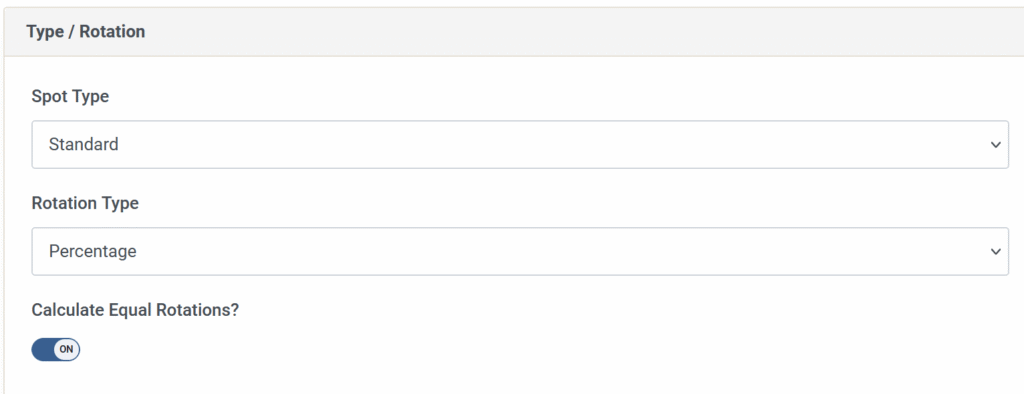
The spot and rotation type of your instruction set determines how your files will be trafficked and the frequency of how often each commercial airs within your air schedule.
Spot Type
the different spot types will change how your file airs in a commercial break.
Rotation
The rotation of your files will determine how often each particular commercial in your instructions set will air.
Please note that patterns will reset at the start of a new instruction set and, unless specified in the instructions or special instructions, may fall out of the expected sync when new instructions are sent.
Dates and Dayparts
Within dates and dayparts you will be able to specify when your instruction set should, or shouldn’t, be in affect for your commercials.
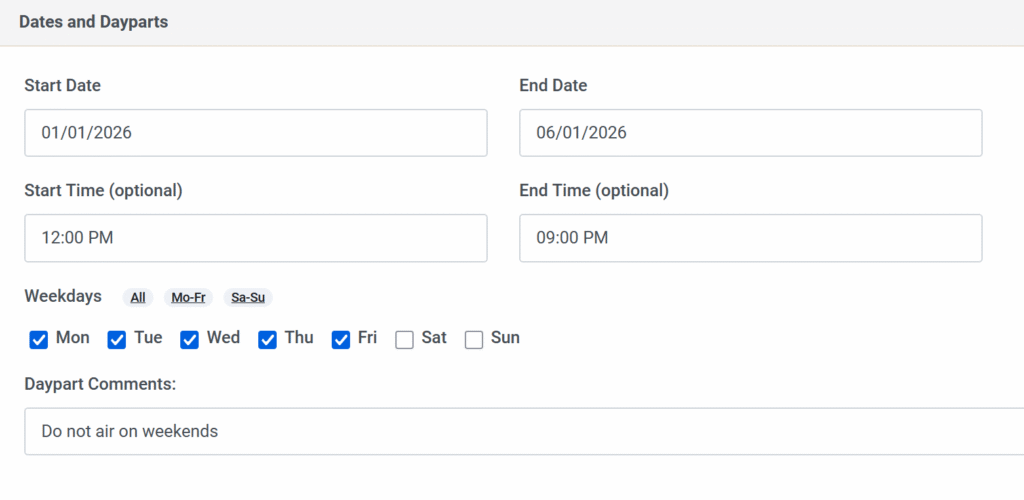
If left blank your instructions will start at the beginning of the broadcast day throughout the start and end dates.
If left blank your instructions will cease at the end of the broadcast day throughout the start and end dates.
Assets
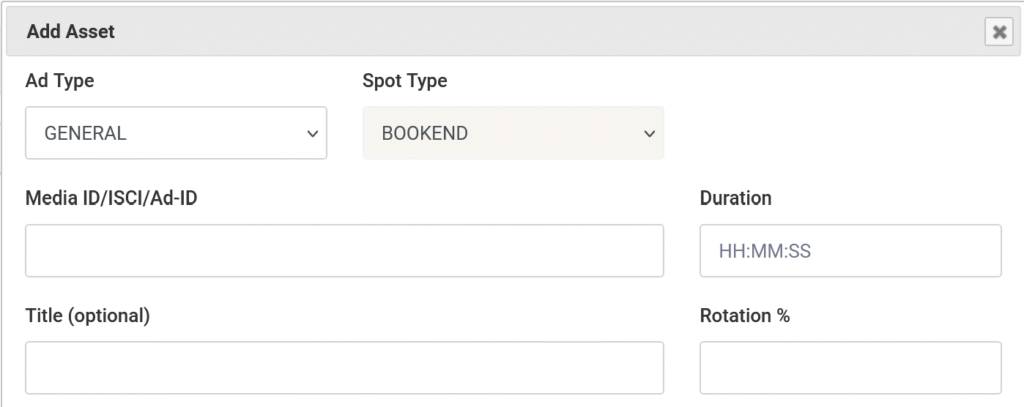
The commercials you would like to air for this particular instruction set will be specified within the assets field. The spot type selected earlier in the form will determine some of the restrictions placed in the assets you can select. For example: Standard spot types can only use one length per instruction set and you will not be able to combine :15 and :30 spots in your rotation group.
To select your assets click the add icon. You will need to provide the information below for each spot in your instruction set.
Promo: Ad types used by stations to promote their programming or events.
PSA: Ads that are intended to run only within public service announcement designated breaks at the station.
Please note that if the Media ID on the traffic instructions does not match the file received by the station then it is likely the station will not be able to air the spot until this is corrected.
If you are using a pattern rotation or equal rotation percentages this field will not be editable.
After adding your first assets you can easily add more by clicking the “add assets” button again. You can also edit the existing assets already added by clicking the edit icon next to it. Similarly you can delete an asset by clicking the delete icon.
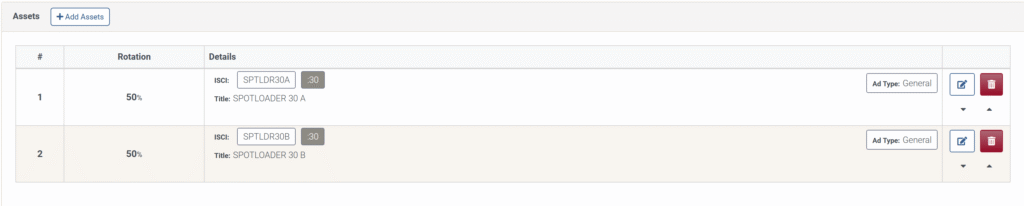
The assets will be listed showing their Media ID, Length, and if applicable their rotation percentage so you can double check and confirm the information is correct. Each asset will also be assigned a material number in the order in which the spots were added to the rotation. This material number will be used if a pattern rotation is selected.
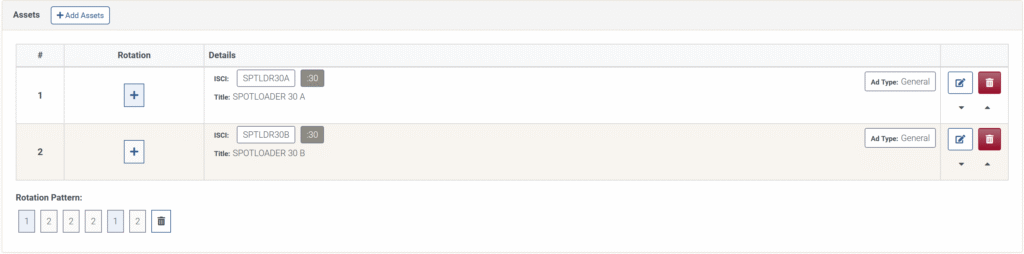
Bookends/Piggybacks/Donuts
If you are trafficking bookends, piggybacks, or donuts you will need to specify what two files will air together and what order they should air in. The first spot you add to one of these traffic sets will air first and the next spot will air second. If you have multiple files and want them to air in a mix of rotations you will need to add each of those specific pairings to your instruction set.
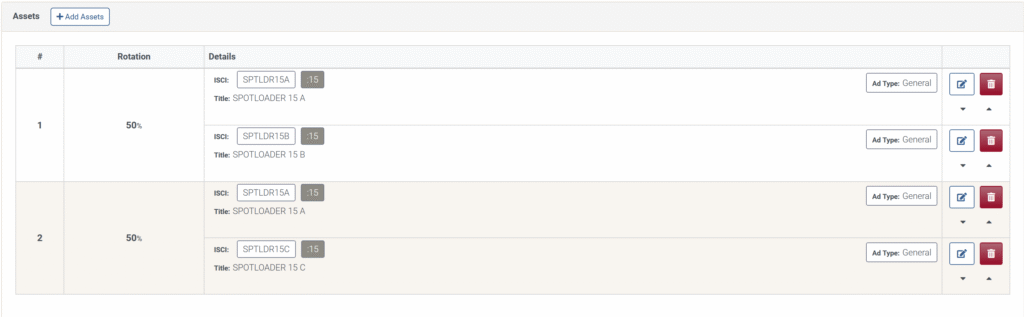
Destinations

The destinations selected here will receive a copy of the traffic instructions once they are finalized and sent. As noted earlier, you can send all sets of instructions to the same group of stations or, if needed, you can choose to send each set of instructions to separate stations.
To choose the stations you are sending the instructions to simply click the add button and search by either market or call letters to select the necessary stations.
After selecting the station(s) you will see a list of the call letters that will receive these instructions. You can remove stations by clicking the x icon next to them or add additional stations by clicking the add destinations button.
Comments
If you have additional clarifying information or notes to add in regards to this instruction set you can add them here. We suggest adding details regarding any restrictions or special instructions that may impact the airing of this instruction set.
Adding Additional Instruction Sets

After you have added your first instruction set you will be able to create additional sets to accompany it. You can add as many additional sets as required by clicking the add instructions tab at the top of the page. Similarly you can delete the additional traffic instruction sets if needed by clicking the delete icon next to the instruction set. Some examples of traffic instructions that may require additional sets of instructions can include, but are not limited to, the below examples:
You need to traffic a group of :15 spots as both standalone and bookends
Your traffic instructions have to pause on the 15th of the month because you do not want to air that specific date.
You need to traffic both :30 and :15 spots for the same date range.
A :05 commercial needs to be trafficked as both a billboard and a standard spot.
The traffic instructions require a different rotation of :30 spots to run on Monday compared to the rest of the week.
Save as Draft or Review and Submit

At any point in the creation of your traffic instructions you can save them as a draft to continue working on them later. The draft can be accessed at a later time from the Traffic Instructions page.

To submit your traffic instructions click on the Review and Submit button. Once you click this button our system will check for any conflicts in the instruction sets and flag any issues that need to be addressed. If there are no conflicts you will be able to preview the PDF version of the traffic instructions as they will be sent. The selected stations will receive an email with these instructions and will also have access to them within their Spotloader account.
Checking Current and Previously Sent Instructions
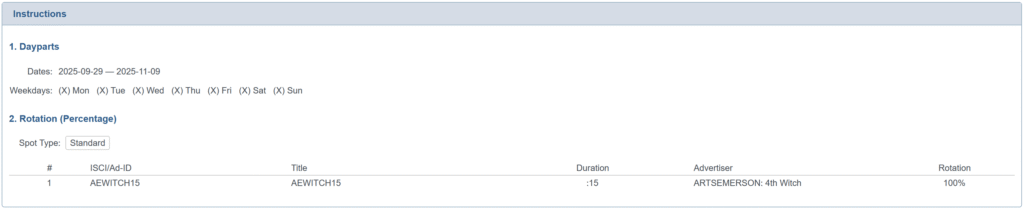
You can view your previously sent instructions directly from the traffic instructions page. From this page you can quickly see who created the instructions and which advertiser the instructions are for. By clicking on the instruction set you can view the instructions in their entirety. From the instruction preview you can submit revisions to these instructions or create a copy to quickly make new instructions while using the originals as a baseline.
Sending Revised Traffic Instructions

Sometimes traffic instructions need to be revised to update the airing information for the spots within. Revised instructions can quickly be sent from within the original traffic instruction set found within the Traffic Instructions page. By clicking on the submit revision button, you will be able to create an updated version of the instruction sets within. From here you can adjust the air dates, assets, rotation patterns, etc.
After submitting your revised traffic instructions the station will be alerted to the changes and receive a new set of instructions so they can update the information within their system.