

From the Accounts page you are able to add additional members to your account, remove members that no longer require access, adjust the permission levels for current members, and adjust your notification preferences.
The Accounts page can be accessed at any time from the left navigation bar by clicking on the accounts icon. Within the account settings there are three separate tabs where you can take actions on the account.
Account Details
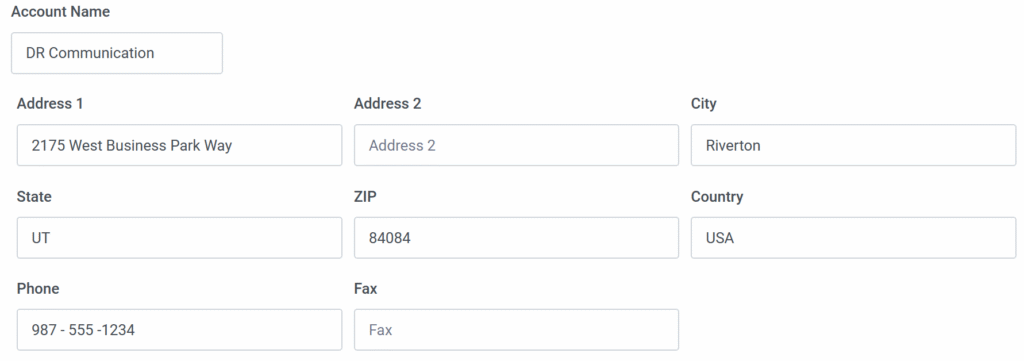
Within the account details you can adjust the contact and company information for your account.
Account Users

Under the account users tab you are able to view all members that currently belong to your account in Spotloader including their name, email address, and whether or not they have account manager access. Also from this page you are able to add new account members, remove account members, and adjust permissions for each user.
Adding New Users
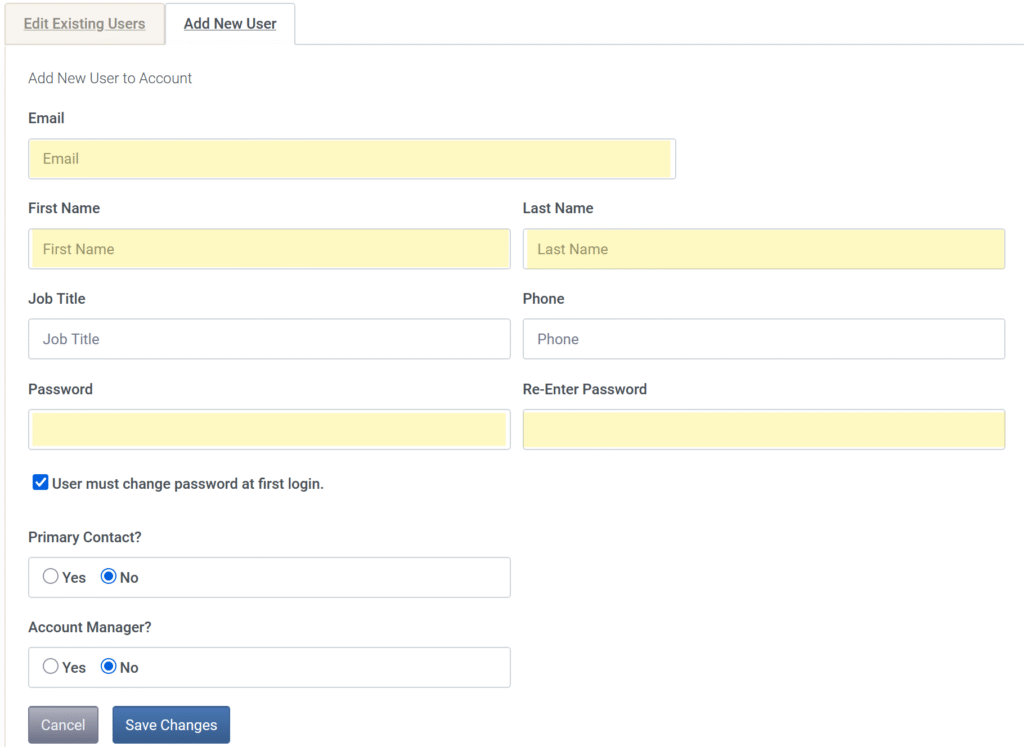
To add a new user, Account Managers can simply click on the “Add New User” tab. In this form you will need to provide at least the user’s name and email address, which they will use to login. In addition, a password will need to be set for the new user’s first login.
After the user’s details have been saved, you can further adjust the default permissions that the member will have in the account.
Deleting Existing Users
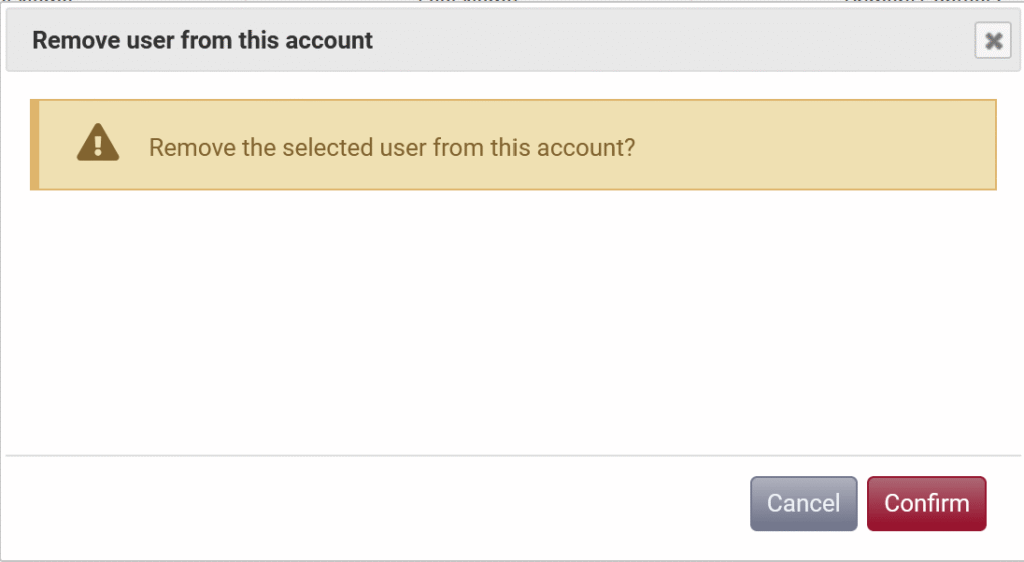
Sometimes its necessary to remove existing member from your account. Some reasons for this may include a change in duties that no longer require Spotloader access, changing of external production teams, or change in employment. Account managers can remove existing account members by locating that user in the list and simply clicking the “delete” button. After confirming this change in a follow up prompt the user will no longer be able to access your account in Spotloader.
Adjusting User Information
By clicking on a user in the accounts page, you can change their name, title, or manually reset their password. In addition, you can toggle their permissions for different Spotloader functions within the account. By enabling or disabling the various Spotloader permissions you can grant or deny access to uploading files, deleting files, or make them an account manager.
Some examples of the permissions that can be toggled are:
Account Notifications
In the final tab of the account page, you can assign notification channels to those users currently added in your account. These notifications will trigger emails when certain conditions are met. For example, you can set your trafficking department to receive an email notification when a new file is sent to stations so they can be sure to send matching trafficking instructions to the corresponding stations.