

Producing HD Spots
You may wish to use our saved export profile that can be downloaded here:
MXF_XDCAM_Render.xml
1. Starting a new project
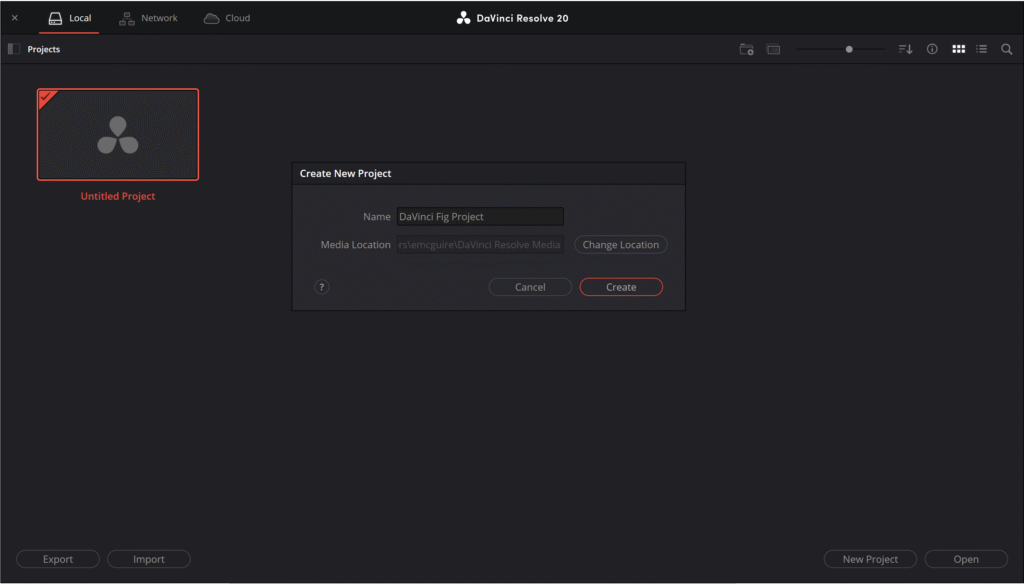
To start a new project, double click on Untitled Project and name your new project.
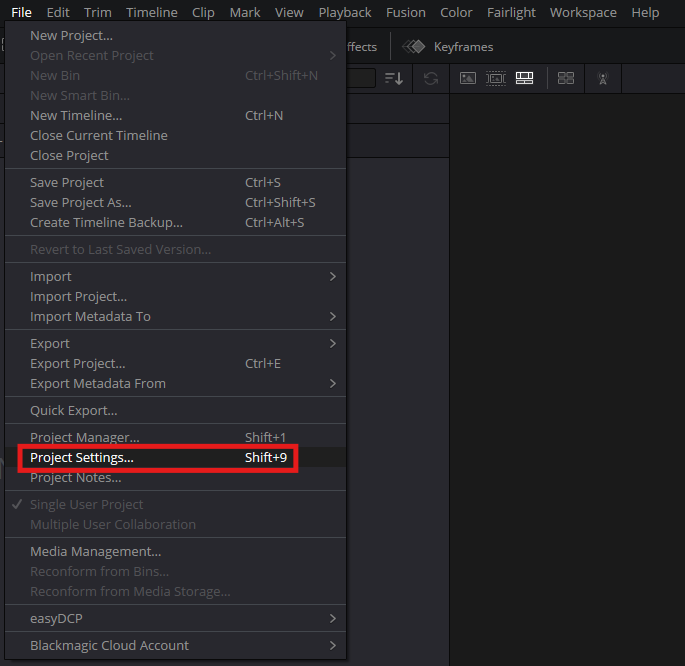
In the project click on File and then Project Settings
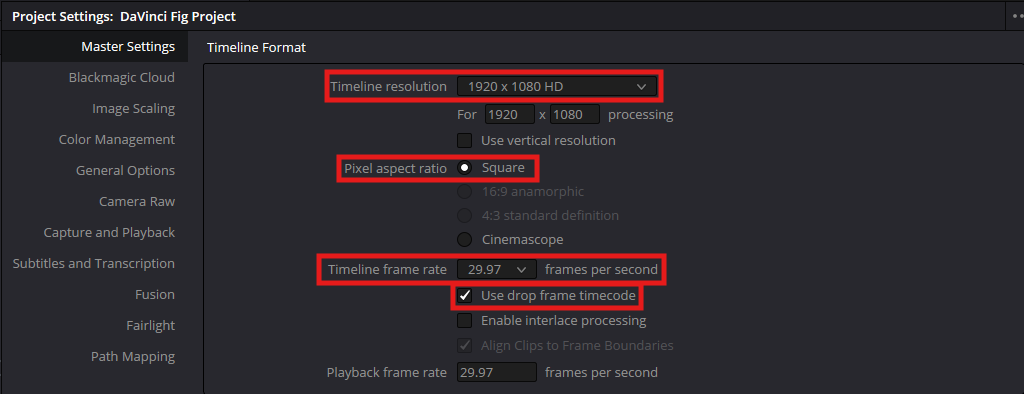
In the master settings tab, ensure that your project is set to 1920 x1080 HD, a square pixel aspect ratio, a 29.97 frame rate, and a drop frame time code.
You can now add your media and begin editing your video file.
2. Exporting
When you are ready to export your project, select the Deliver option to begin your export.

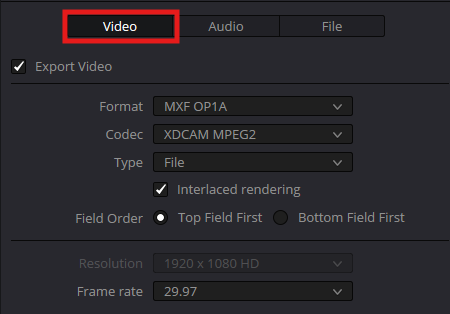
Under Video, set the Format to MXF OP1A, set Codec to XDCAM MPEG2, and set the Interlaced rendering to Top Field First. If not already selected, set the Frame rate setting to 29.97.
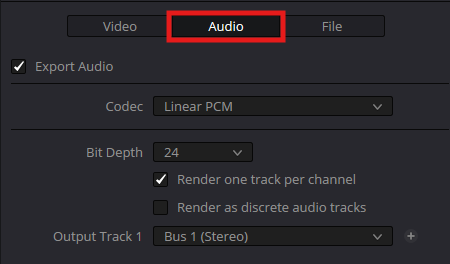
Under Audio ensure that the Codec is set to Linear PCM and the Output Track 1 is Bus 1 (Stereo)
After confirming the export settings click on Add to “Render Queue” and then click on “Render All”
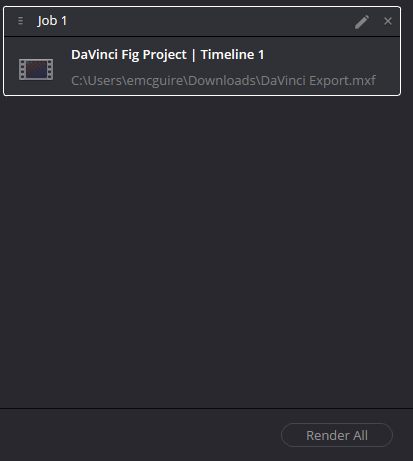
Your file is now be ready to uploaded to Spotloader.