
Spotloader Help
  • File Format Specifications
  • Production Tips
    • Adobe Premiere Pro
    • Final Cut X
    • Quicktime
    • View All Production Tutorials
  • FAQ
  1. Home
  2. Account
  3. Accounts
Searching...

Related Topics

  • Adding a New User to Your Account
  • Users with Multiple Accounts
  • Change or Reset Your Password

In This Section

  1. Account Details
  2. Account Users
    1. Adding New Users
    2. Deleting Existing Users
    3. Adjusting User Information
  3. Account Notifications

Accounts

In This Section
  1. Account Details
  2. Account Users
    1. Adding New Users
    2. Deleting Existing Users
    3. Adjusting User Information
  3. Account Notifications

From the Accounts page you are able to add additional members to your account, remove members that no longer require access, adjust the permission levels for current members, and adjust your notification preferences.

The Accounts page can be accessed at any time from the left navigation bar by clicking on the accounts icon. Within the account settings there are three separate tabs where you can take actions on the account.


Account Details

Within the account details you can adjust the contact and company information for your account.
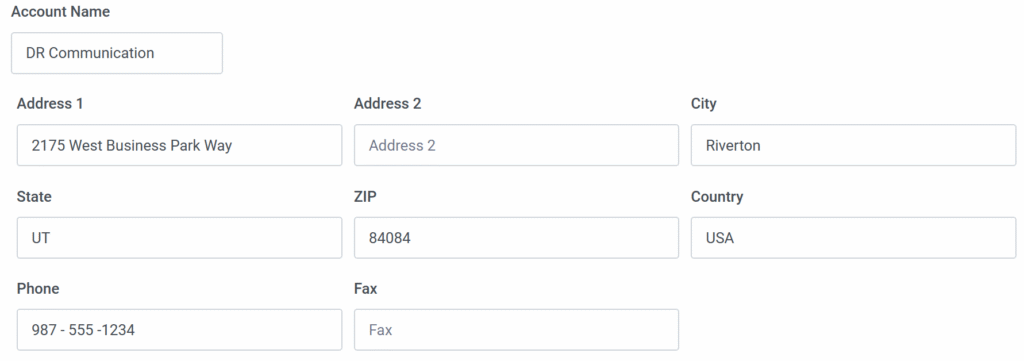
Information such as your company location and contact information can optionally be added under account details.

Account Users

Under the account users tab you are able to view all members that currently belong to your account in Spotloader including their name, email address, and whether or not they have account manager access. Also from this page you are able to add new account members, remove account members, and adjust permissions for each user.

Adding new users, deleting existing users, and editing user permissions can only be done by account managers. Multiple members in the account can be designated account managers with access to make these changes.

Users can belong to multiple Spotloader accounts and can do so using the same login credentials for each account. In addition, those users can switch between their active account at anytime.

See Also: Users with Multiple Accounts

Adding New Users

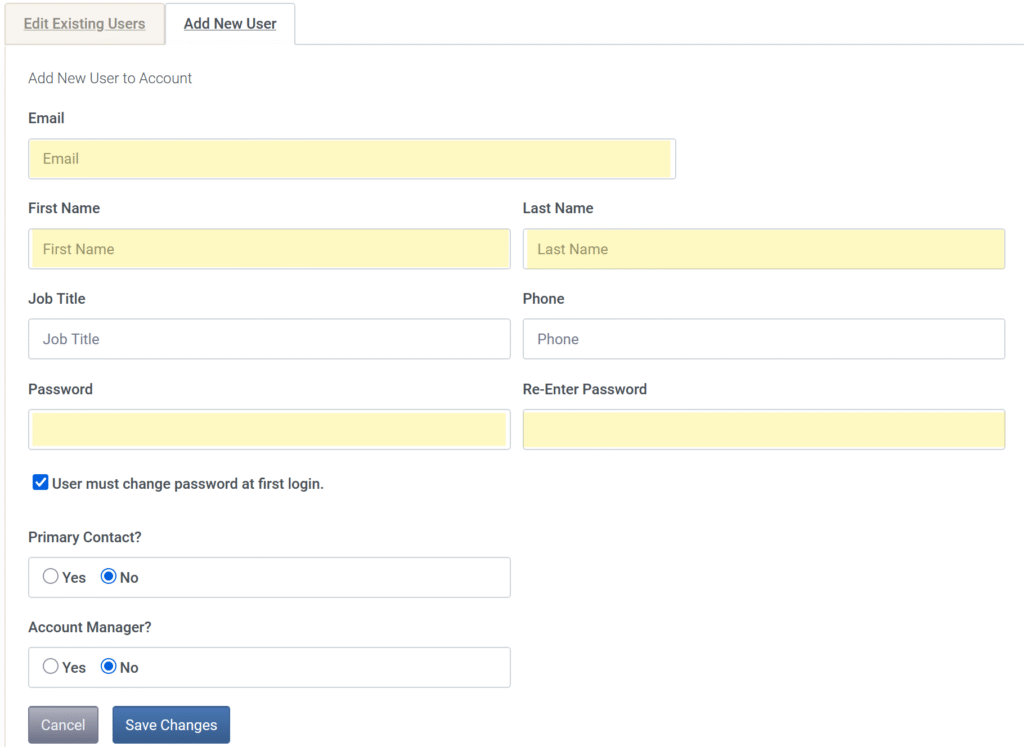
The highlighted fields are required to add a new user to your account.

To add a new user, Account Managers can simply click on the “Add New User” tab. In this form you will need to provide at least the user’s name and email address, which they will use to login. In addition, a password will need to be set for the new user’s first login.

After the user’s details have been saved, you can further adjust the default permissions that the member will have in the account.

See also: Adding a New User to Your Account

Deleting Existing Users

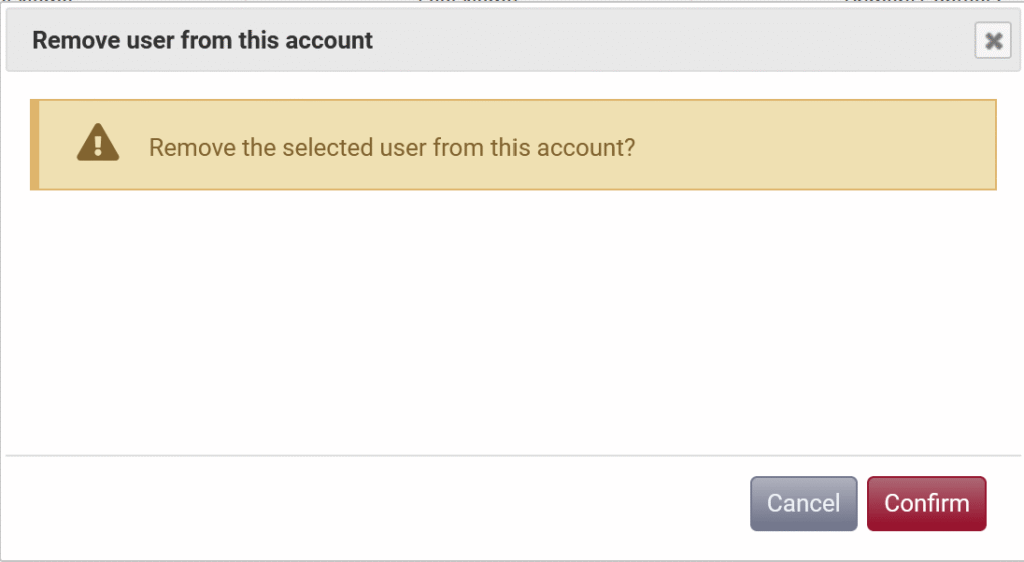
Sometimes its necessary to remove existing member from your account. Some reasons for this may include a change in duties that no longer require Spotloader access, changing of external production teams, or change in employment. Account managers can remove existing account members by locating that user in the list and simply clicking the “delete” button. After confirming this change in a follow up prompt the user will no longer be able to access your account in Spotloader.

Users who have been removed from your Spotloader account can be added back in the future by following the same steps as adding a new user. Once their email address is added into the new user form, their existing Spotloader information will prefill into the remaining fields.

Adjusting User Information

By clicking on a user in the accounts page, you can change their name, title, or manually reset their password. In addition, you can toggle their permissions for different Spotloader functions within the account. By enabling or disabling the various Spotloader permissions you can grant or deny access to uploading files, deleting files, or make them an account manager.

Some examples of the permissions that can be toggled are:

Can upload Files?
Turning this permission off will prevent the user from uploading new files to Spotloader. This may be beneficial if you would like company wide access to view files in Spotloader but only one production group to upload new spots.
Can Send Files?
Turning this permission on will allow the user to make a file available to additional stations once a spot has been uploaded. This can be beneficial if a new buy has been added to your campaign that includes stations that were not a part of the original delivery.
Can Cancel Deliveries?
If this permission is turned off then the user will be unable to stop deliveries to stations that currently have access to spots from your account. In addition the user will be unable to delete files that have been uploaded.

While we grant the ability to adjust individual user permissions, we would suggest leaving the permissions as is for most primary uses


Account Notifications

In the final tab of the account page, you can assign notification channels to those users currently added in your account. These notifications will trigger emails when certain conditions are met. For example, you can set your trafficking department to receive an email notification when a new file is sent to stations so they can be sure to send matching trafficking instructions to the corresponding stations.

Station accounts have their own notification settings so you will not need to assign any station contacts to receive these notifications.


© Copyright Spotloader Help.
  • File Format Specifications
  • Production Tips
  • FAQ