
Spotloader is an easy to use, free, secure, and reliable service that will allow you to send commercial files digitally to stations. Spotloader has many advantages over other file delivery methods such as FTP and email links. First, your uploads will be analyzed before delivery in order to verify that the file is of broadcast quality and matches the trafficking information expected by the station. Files uploaded to Spotloader can be previewed and managed after the upload directly by yourself and the station to ensure proper deliveries even into the future. Finally, Spotloader creates a piece of mind that once a file has been uploaded there will be no unexpected surprises that may impede the broadcasting of your spots.
In this welcome guide you will find helpful information regarding our file format specifications and uploading new files to Spotloader.
Login
To create a Spotloader account please request your station representative send you an email invite.
Once you have created or been added to a Spotloader account you can login by using your associated email and the password that you have created.
Additional users can be added to your account if needed by following the instructions from our help page here: Adding A New User to Your Account
If you need to reset your password please use the forgot your password? link in the upload form to request a password reset.
File Format Specifications
If you are already producing a MPEG-2, MXF, or MP4 file please give your file a try, there is a good chance your existing file will work as is. We also have a range of tutorials for producing files in many of the common video editing programs; including downloadable presets to get you started.
HD Specifications
MXF files (.MXF)
Container:
Container Format: MXF OP1a / XDCAM
File Extension: .mxf
Video Specs:
Compression Codec: XDCAM EX35 1080i60
File Extension: .mxf
Screen Size: 1920×1080
Display Aspect Ratio: 16:9 (center-cut safe recommended)
Pixel Aspect Ratio: 1.0 (square pixels)
Scan Type: Interlaced, Top Field First (Upper Field First)
Frame Rate: 29.97 fps (constant/fixed)
Frame Rate Mode: Drop Frame (DF)
Bit Rate: 35 Mb/s CBR (constant bit rate)
Audio Specs:
Audio Type: PCM
Channels: 2 channels (stereo)
Sample Rate: 48000 Hz
Bit Depth: 16 or 24
Closed Captions (if present):
CEA608 and CEA708 embedded as ancillary track (SMPTE 436M)
If using Adobe Premiere, please use our MXF preset.
MPEG-2 files (.MPG)
Container:
Container Format: MPEG-PS (program stream)
File Extension: .mpg
Video Specs:
Compression Codec: MPEG-2
Screen Size: 1920×1080 (1080i)
Display Aspect Ratio: 16:9 (center-cut safe recommended)
Pixel Aspect Ratio: 1.0 (square pixels)
Scan Type: Interlaced, Top (Upper) Field First
Frame Rate: 29.97 fps (constant/fixed)
Frame Rate Mode: Drop Frame (DF)
Bit Rate: 35 Mb/s CBR (constant bit rate)
Audio Specs:
Audio Type: MPEG-1 Layer II
Channels: 2 channels (stereo)
Sample Rate: 48000 Hz
Bit Rate: 384 Kbps
Closed Captions:
CEA608 and CEA708 embedded in the video (ATSC DTVCC)
H.264 files (.MOV and .MP4)
Container:
Container Format: Quicktime or MPEG-4
File Extension (if Quicktime): .mov
File Extension (if MPEG-4): .mp4
Video Specs:
Compression Codec: H.264
File Extension: .mov
Screen Size: 1920×1080 (1080p)
Display Aspect Ratio: 16:9 (center-cut safe recommended)
Pixel Aspect Ratio: 1.0 (square pixels)
Scan Type: Progressive
Frame Rate: 29.97 fps (constant/fixed)
Frame Rate Mode: Drop Frame (DF)
Format Profile/Level: Main or High (Main@L4.1 recommended)
Use B-Frames: Yes
Bit Rate: 30Mb/s
Scan Type: Progressive
Audio Specs (for Quicktime containers):
Audio Type: PCM (Little or Big Endian)
Channels: 2 channels (stereo)
Sample Rate: 48000 Hz
Bit Depth: 16 or 24
Audio Specs (for MPEG-4 containers):
Audio Type: AAC
Channels: 2 channels (stereo)
Sample Rate: 48000 Hz
Bit Rate: 256 Kbps
Closed Captions:
Please read the section about closed captions below.
Closed Captioning
High Definition (HD)
We recommend submitting files with embedded closed captioning in either the MPG container or the MXF container.
For MPG: CEA608/CEA708 embedded as ATSC DTVCC (line 9)
For MXF: CEA608/CEA708 embedded as ancillary data.
* CEA608 is required even for HD.
Standard Definition (SD)
SD files containing closed captioning must use the MPG container or the MXF container.
CEA608 closed captions must be inserted in the VBI (line 21).
Actual video screen size, including VBI, will be 720×512.
For MXF IMX, your software may describe screen size as 720×486, but actual screen size will be 720×512.
File Layouts (NLE Sequences)
Most broadcasters have moved to complete file-based workflows, avoiding the use of tape and manual processes. This level of automation requires not only media files, but trusted associated metadata (unique identifiers, titles, content lengths, etc.).
At the non-linear editing stage, certain guidelines can help us ensure the validity of the metadata provided along with your media files. This in turn can add smoothness and accuracy to the entire workflow as your original files are cataloged and prepared for air. Below, are diagrams that represent proper layouts within non-linear editing software, depending on whether you are producing spots with slates or without them.
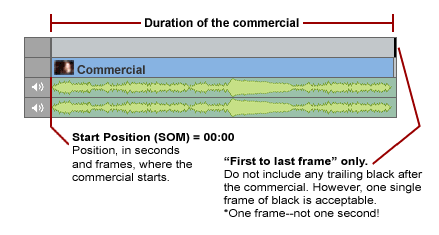
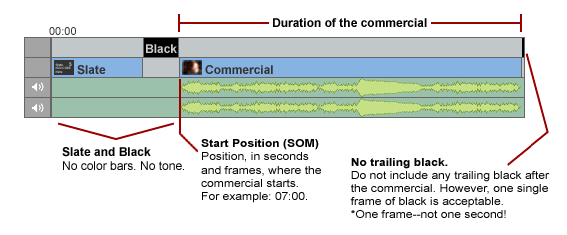
The single most important element to notice in these diagrams is that commercials should end with a single frame of black. Knowing this information allows our system to determine the duration of your commercial and to protect it from being clipped at the wrong position during ingest.
Option 1. Commercial without slate or black (STRONGLY PREFERRED)
When you add new files to our system we collect all important metadata about these files—this information is forever linked to associated files. Therefore, slates are not really necessary and are deemed optional.
Option 2. Commercial with leading slate and black
If you are producing spots preceded by slate and black, it is important note the position in the layout where the actual commercial starts (relative to the beginning of the slate). This position is commonly known as start point, start of message, or simply SOM.
Video and Audio Content
The video and audio content of files uploaded to Spotloader should adhere to any FCC regulations with regards to obscenity, indecency, and profanity. All files should also conform to FCC CALM Act audio levels and not contain any EAS tones or facsimiles of alert tones. It is the responsibility of the uploader for each file to confirm that their spots follow these regulations and any other guidelines as set by the receiving station.
Navigating Spotloader
To navigate through Spotloader you can use the buttons on the dashboard page or the left navigation bar from any page in Spotloader to access the different functions within Spotloader.

The “Homepage” of Spotloader that contains quick links to the help site and other pages within Spotloader.
Information on previous spot deliveries can be viewed here including which stations received a spot and when a spot was delivered.
A spot library of previously uploaded files in your account.
Where new spots can be uploaded for delivery to stations.

This is where account and login settings can be adjusted.

From this page users can be added or removed from the account and email notifications can be set up for different account actions.
Uploading a New File to Spotloader
Produce your video file
Before you upload your file, please make sure it was produced in the correct format and layout.
Also, make sure to visit our extensive list of tips and tutorials for the leading editing and transcoding applications.
Navigate to the file upload form
Click on the the upload icon to access the upload form:
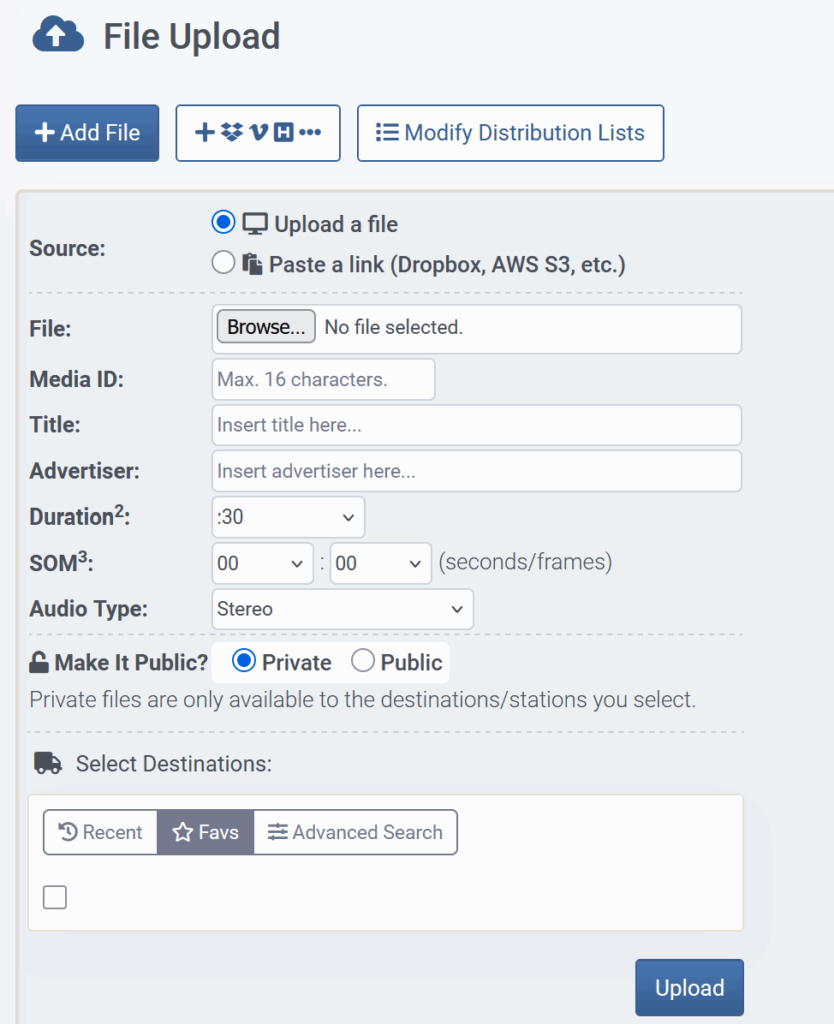
Select a file source
Upload a file
choose this option to upload a file from your local computer.
Paste a link
choose this option to enter the URL of a supported file location, including Dropbox, S3, FileAnywhere, and others. If your file storage/sharing platform is not yet supported, please contact your representative and we will do our best to make it work.
Alternatively you may wish to upload web links by using our Link Browser.
Enter the Spot Metadata
We recommend not exceeding 16 characters in length, although some stations may accept longer codes.
In case of a revision, we recommend appending “R1”, “R2”, etc. at the end of the original Media ID.
The Media ID is often referred to as the ISCI code or Ad ID.
If your spot does not contain initial slate and black, enter ‘0’ seconds and ‘0’ frames as the SOM.
If the commercial starts, for example, 7 seconds into the video, enter ‘7’ seconds and ‘0’ frames as the SOM.
For more information, please read about the accepted video layouts.
Read about audio layouts for files containing surround sound, no audio, etc.
Select one or more destination
The destinations that you select will receive a delivery of your file in their preferred file format.
Upload the File
Click on the “Upload” button to start your upload. When the upload is complete, the file will be analyzed according to the station’s validation rules and will be either accepted or rejected. If the file fails to upload you will be presented with a description of the error. Please see our pages on some common upload errors and possible solutions for them. Once the file has successfully been uploaded, the delivery of the file to the station(s) will start and a notification of the delivery will be sent to the station.
If you need to transfer additional files, click on the “Add File” button to open an additional upload form.