
The files page is where you are able to view and manage any previously uploaded files from your account. Some actions you can take with your files include, previewing the spot, sending files to additional destinations, and deleting spots.
The Files page can be accessed from the left navigation bar at any time under the files icon. You can also quickly access the files page from the dashboard using the “My Files” button.
Searching for Files
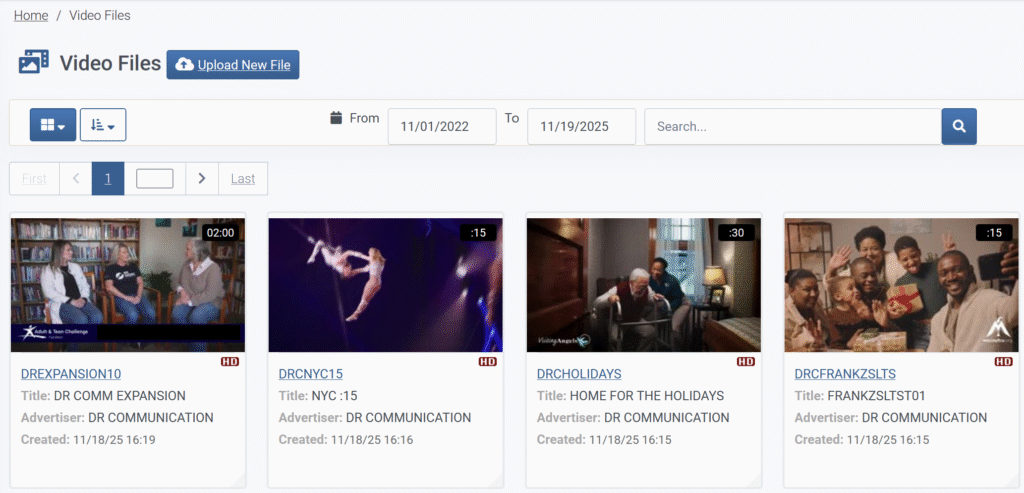
As you upload files to Spotloader you will begin creating a library of spots that can be viewed in the Files page. As this list of files grows its important to be able to accurately and quickly search through the available files available in your account.
The search bar in the files page allows you to search for your spots by either the Media ID, Title, or Advertiser. In addition, you can choose to filter results based on the date they were uploaded.
File Details
When you click on a file in Spotloader there are a range of different actions you can take by navigating through the provided tabs in the file details window.
Spot Preview
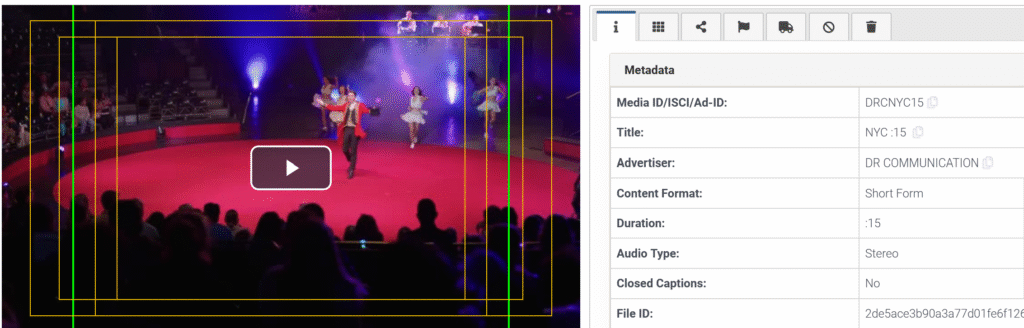
While viewing the file details of a spot you are able to view the file directly. In addition to using this preview to watch and listen to your file, you can also check the title and center cut safety of the spot and check the closed captioning placement if CC is present.

File Details
In this section you can access spot metadata such as: video format, fps, bitrate, audio type, upload date, and more.

Closed Captions
If the spot was uploaded with captions, those can be viewed here.

Thumbnails
Still images of the spot can be viewed within this tab. When clicking on a thumbnail it will expand the image and allow you to save it locally. These can be used to send or confirm spot details such as disclaimers, phone numbers, titles, etc.

Share
The Share function will allow you to send a low resolution preview of this spot via email with a message of your choosing.

Send
From the Send tab you can deliver a file to more stations or destinations that weren’t selected during the initial upload.

Cancel Delivery
If a delivered spot needs to be purged from one or more of the destinations it was sent, this can be requested from the Cancel Delivery tab. All cancellations will require a brief description of the cancellation reason and an additional confirmation to cancel the delivery. Both the upload account and station receiver account will receive a cancellation email with the file information and reason for the cancellation. Files will still remain in Spotloader when deliveries are cancelled and can be re-delivered at another time if needed.

Delete File
If a spot is uploaded to Spotloader in error or once a spot has reached its end of use and should not be aired again it can be deleted from Spotloader. Once a file is deleted, cancellation emails will be sent to all destinations that the spot was delivered to so it can be purged. Deleted files can’t be delivered to stations and will no longer be available in Spotloader. After the deletion, the original file’s Media ID can be reused in Spotloader.