

The Deliveries page is where you can monitor in real time the delivery status of your file to one or many stations. In addition to just checking the delivery status of a file, you can also quickly make your file available to additional stations directly from this page.
The Deliveries page can be accessed at any time from the left navigation bar by clicking the deliveries icon or from the dashboard page by clicking on “My Deliveries”.
Checking Delivery Status
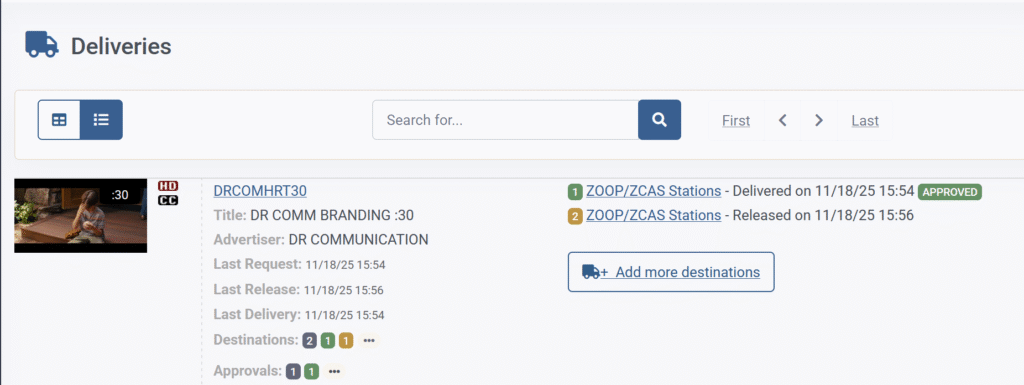
To check a file’s delivery status simply find the spot you need to check and click on the 3 dot menu icon next to “destinations”. This will show you each station that a delivery request was created for, the delivery status, and the date and time of the latest delivery to each station.
Deliveries that have been successfully completed will have a green icon and the time of the last successful delivery to that station. Deliveries that are currently in progress will have a yellow icon showing that they are pending.
Files that have been cancelled or deleted will still appear in the deliveries page but will have a red icon next to them and a note that they have been cancelled.

Sending Files to Additional Destinations
You can quickly send a file to additional stations directly from the deliveries page. Simply click the 3 dot menu icon next to the file you would like to send to additional stations and click the “add more destinations” button. You can then select one or more additional stations within Spotloader to make the file available to.